If you have used Arc for a while, your browser is probably more than a collection of bookmarks. It is a set of Spaces you recognize by color, folders arranged around projects, and a few pinned tabs that are always where you left them. You may have stopped thinking about these details. They have become the way you use the web.
Open Arc is an independent, open-source macOS browser built to keep that way of browsing familiar. It brings together the sidebar, Spaces, Profiles, automatic tab archiving, Split View, Peek and other everyday interactions—and lets you import your existing Arc workspace instead of arranging it all again.
It is built on Chromium, with a native Swift and SwiftUI shell. The project is written from scratch, with its own code, icons and artwork. It is not an official Arc release and is not affiliated with The Browser Company.
The timing matters. The Browser Company has announced Arc's sunset for December 22, 2026 . If you are deciding where to move, this article explains what Open Arc preserves, what it does differently, and what you should check before switching.
Bring the workspace you already made
The first useful feature is the one that saves you rebuilding everything. Open Arc can read your own Arc data on the same Mac and recreate supported sidebar content. The import is read-only: it does not modify Arc or its data.
That includes Spaces, theme colors, supported Space icons, nested folders, pinned tabs, Favorites, Today tabs and supported split groups. Keeping a folder inside its Space is much more useful than receiving a flat list of hundreds of links. Your organization is part of what you are bringing over.
Watch the 44-second import demonstration to see a sample sidebar move into Open Arc, then switch between its Spaces and open a split.
A first import, step by step
- Download the latest macOS DMG, open it and drag Open Arc into Applications. You need Apple silicon and macOS 14 or later.
- Open a regular browsing window, then choose Open Arc > Import from Another Browser….
- Select Arc and keep Sidebar (Spaces, tabs and favorites) selected.
- If History or Passwords appears, choose whether to include it. These are separate options offered when readable data is found; password import may require permission to read the relevant key in macOS Keychain.
- Import, read the result, and check your Spaces, folders and a few important tabs.
- Sign in to your websites again, reinstall the extensions you use, and recreate any Profile separation you need.
Imported Spaces are added to the current Open Arc Profile after your existing Spaces. They do not replace them. Importing the sidebar twice adds the Spaces twice; it is not a merge. Favorites already present by URL are not added again.
There are boundaries to this transfer. Website cookies and signed-in sessions do not move over. Arc's Profile arrangement, preferences and shortcuts are not all reproduced. A restored tab opens its saved URL; it does not restore an unsaved form or a live page session. Unsupported items can be skipped, and custom tab names may change to page titles after loading.
Keep your Arc installation and local data while you check the result. Open Arc does not have to be your default browser for this first trial. The full import guide covers manual file selection, password import and troubleshooting.
A sidebar that reflects how you work
A long strip of tabs treats everything as equally temporary. Open Arc gives different kinds of browsing their own places.
Favorites hold the sites you want close in every Space using the same Profile. Pinned tabs belong to a particular Space and stay in place when their page closes. Nested folders keep a project together. Today tabs hold the pages you open along the way, without requiring you to organize each one immediately.
For example, a writing Space might have a folder of references, a pinned document and a handful of temporary research pages. A personal Space can have an entirely different set of tabs and its own theme. Switching Spaces changes the context without making you sort through everything at once.
Pin a tab with ⌘D, or drag it above the divider. A pinned tab remembers its original URL, so you can return to that starting point after navigating elsewhere. Hide the sidebar when you want the page to take the whole window, and reveal it when you need your workspace again.
Spaces organize; Profiles separate
These two features solve different problems. A Space organizes tabs. A Profile separates browsing data, including cookies, history, saved passwords, extensions and Favorites.
Several Spaces can share one Profile, which is useful when different projects should use the same work login. Give a Space another Profile when you need a different account or want to keep personal browsing apart. Profile separation is local to each Mac; it is not included in sidebar sync.
This distinction also matters during migration: importing your Arc sidebar into one Open Arc Profile does not automatically recreate all of your old signed-in environments. See Profiles before moving a complicated work-and-personal setup.
Let temporary tabs look after themselves
Automatic archiving is one of the habits that makes this style of browser feel different. Open a page, use it, and move on. You do not have to make a permanent filing decision every time you follow a link.
In Settings > Profiles > Archive tabs after, choose 12 hours, 24 hours, 7 days or 30 days. The setting applies to idle, unpinned Today tabs in that Profile. Favorites and pinned tabs stay put, and the active tab is protected.
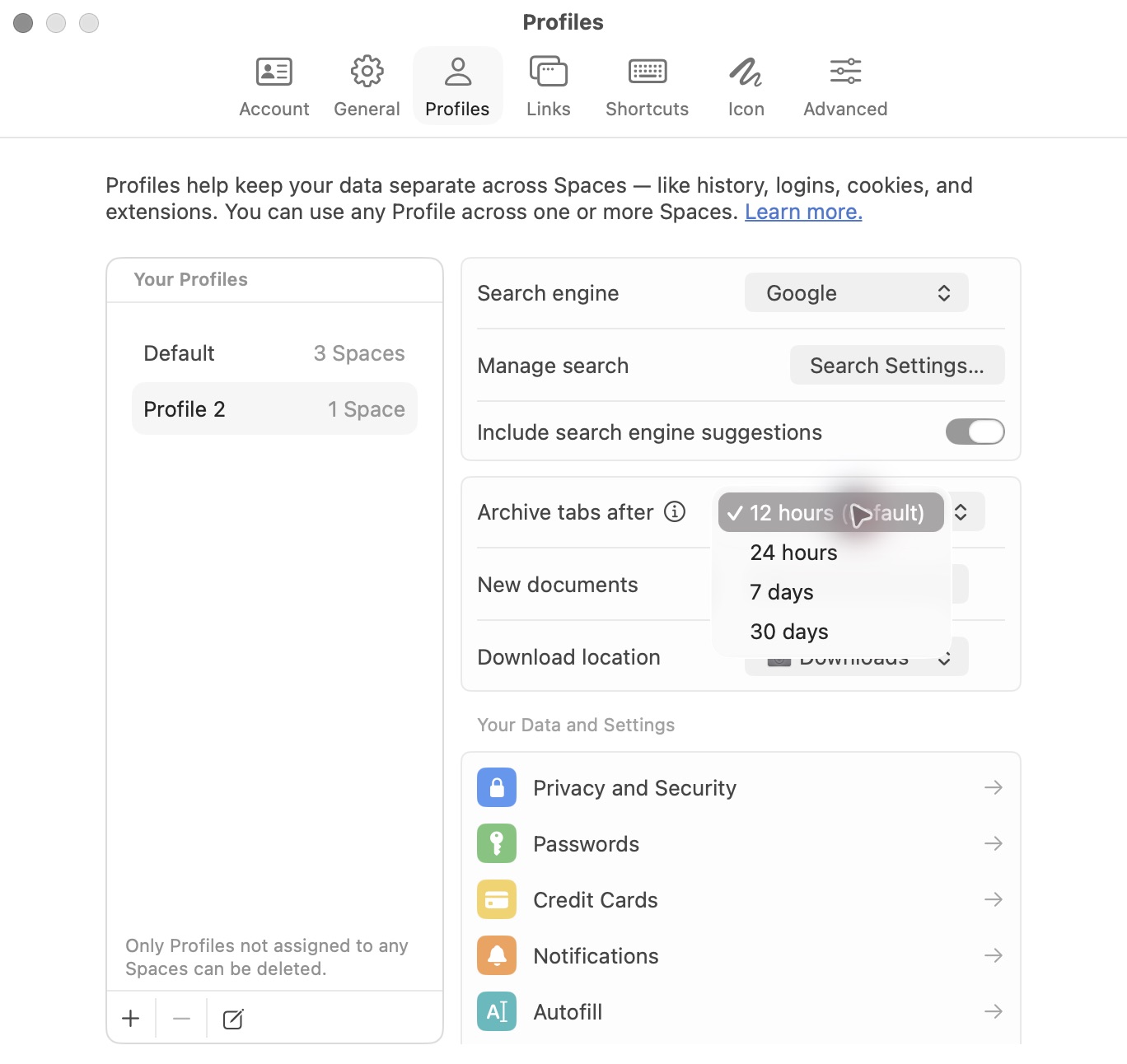
Choose a shorter interval for quick research or a longer one for work you revisit throughout a week. If something deserves to stay, pin it. If you need an archived page, reopen it from the archive; archiving is different from permanently deleting a link.
You can also use Clear to archive Today tabs together. The archive guide explains the details and how to bring tabs back.
Put related pages together with Split View
Some tasks need two pages at the same time: a reference next to a draft, documentation next to a web app, or two options you are comparing. Split View keeps those pages in one browser window instead of making you switch back and forth.
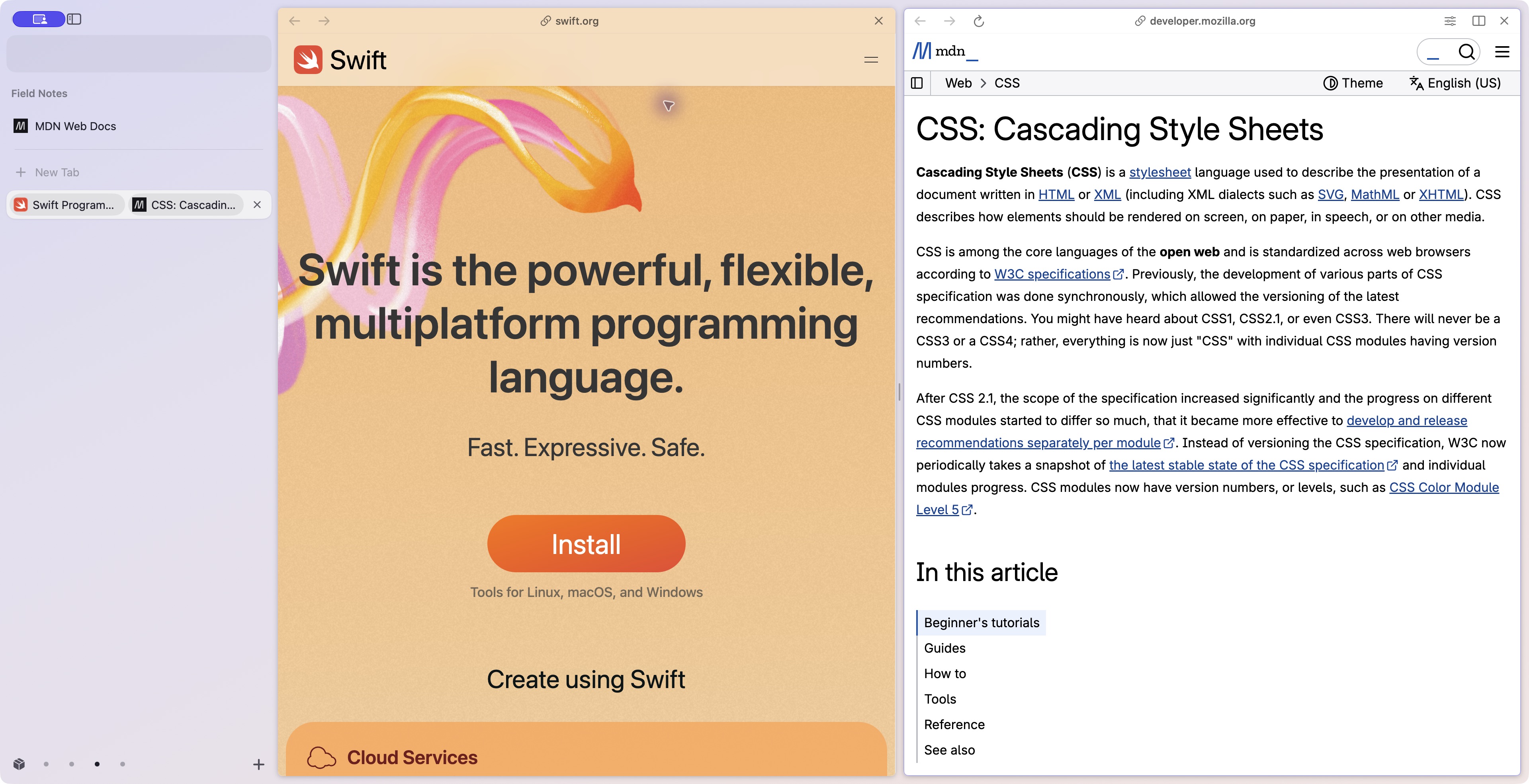
Open Arc supports two to four pages, arranged side by side or stacked. Drag a tab onto the side of the page, use Add Split View, or open a link directly in a split. Resize the divider to give the page you are working on more room.
The pages become a split group in the sidebar. Pin the group if it belongs to an ongoing task, or keep it among Today tabs. You can separate the pages again when the task is finished. Supported split groups can also come across during Arc sidebar import.
The screenshot at the top of this article shows Swift and MDN running side by side in a real development-build window. It illustrates the layout, not a benchmark or a claim that every website behaves identically. See Split View for the controls.
Find the next thing from the keyboard
The command bar combines several everyday actions in one place: open an address, search the web, switch to an existing tab, or run a browser command.
Press ⌘T to start. If the page you need is already open, its result can take you there instead of creating another copy. This is especially useful once a workspace has more tabs than you want to scan visually.
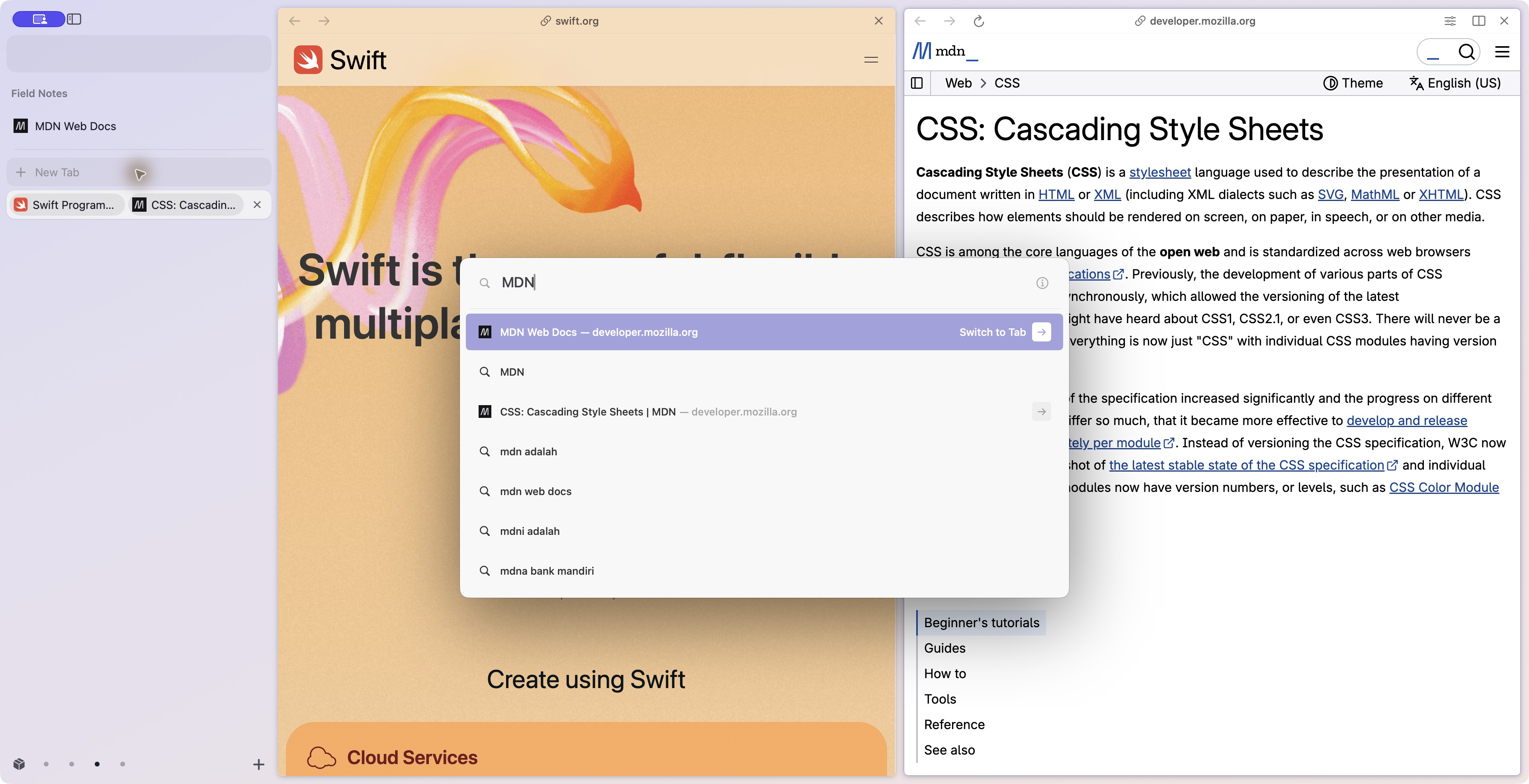
Keyboard access is part of the overall workflow: switch Spaces, pin a tab, open a split and return to a page without repeatedly navigating menus. The command bar guide and keyboard shortcuts cover the available actions.
Follow a link without losing your place
Not every link deserves a new permanent tab. Peek opens a preview above the current page, so a quick detour can stay a quick detour. Shift-click a link to use it when the corresponding option is enabled in Settings > Links. Links to other sites from pinned tabs and Favorites can also use Peek.
Close the preview to return to the page underneath. If the link turns into something worth keeping, promote it to a tab or open it in Split View.
Little Arc handles another kind of interruption: a quick lookup or a link from another app. It opens a small browser window that you can move into a regular Space if the task grows. Settings > Links controls whether links from other apps open this way.
Air Traffic Control lets you route links from chosen sites to a chosen Space. A work domain can open in your work context, for example. This is particularly useful when Spaces use different Profiles and the intended login matters. The links guide explains how these three features fit together.
Keep the useful extras
Open Arc's Chromium foundation supports extensions from the Chrome Web Store, alongside password saving and autofill, page translation, page capture and picture in picture. Built-in ad and tracker blocking is on by default. Extension compatibility still needs checking with the extensions you depend on; Chromium underneath does not mean every Chrome service is included.
The Library brings together downloads, media, Spaces and Easels. An Easel is a canvas for screenshots, images, text and notes—a place to collect visual material while you browse. It should not be confused with Arc's separate Notes feature, which is not included in Open Arc.
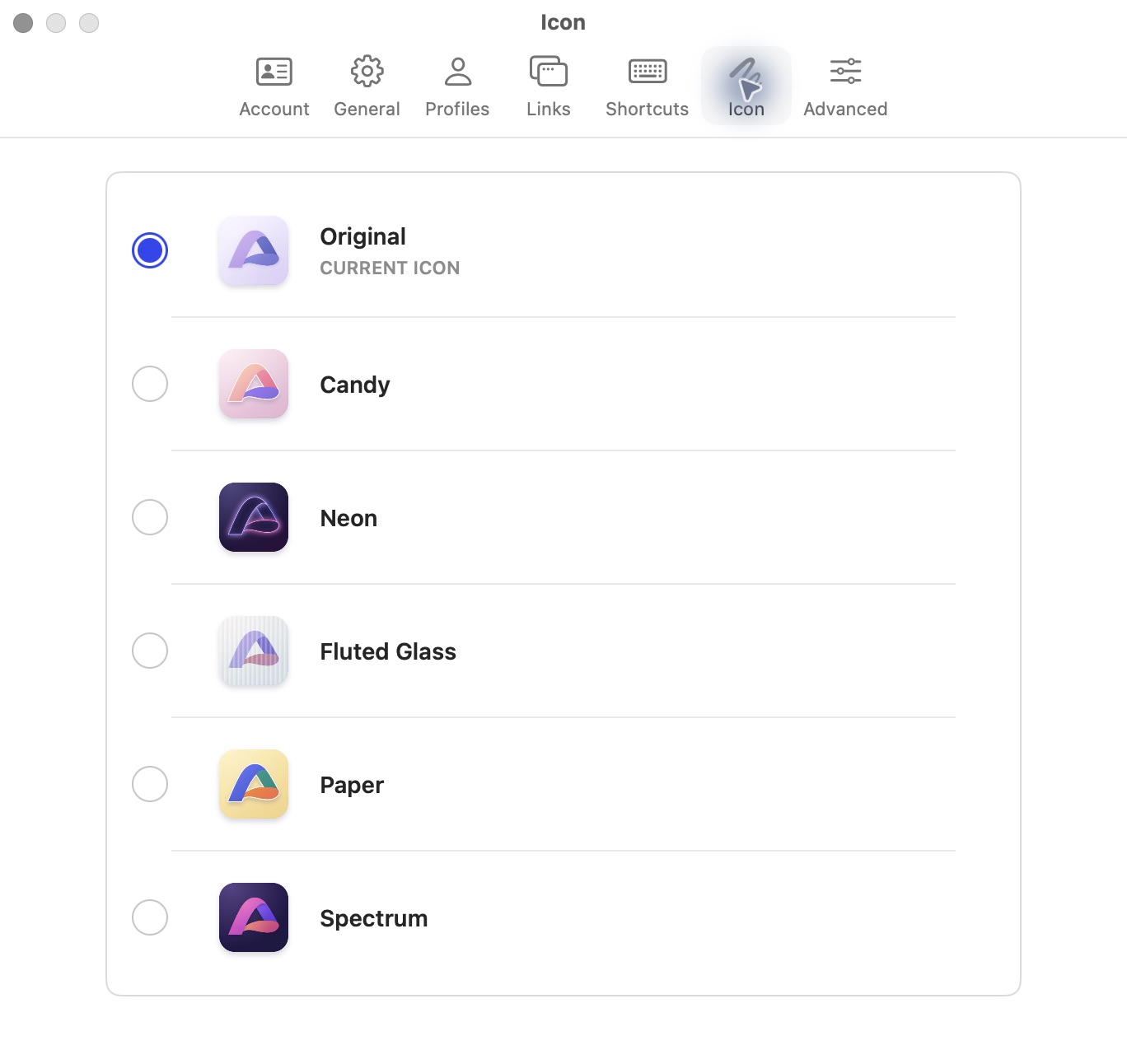
You can also choose among six app icons in Settings: Original, Candy, Neon, Fluted Glass, Paper and Spectrum. These are Open Arc's own artwork, and let the app feel a little more at home in your Dock.
Local data, with optional sync through your iCloud
You do not need an Open Arc account to browse. Your sidebar, history, passwords, cookies, downloads and settings live on your Mac.
If you want the sidebar on another Mac, optional iCloud sync uses your own private Apple CloudKit database. It is off by default. Open Arc does not operate a separate workspace-sync server or ask you to create another account for it.
Supported sidebar sync includes Spaces and their themes, folders, pinned tabs, Favorites, Today tabs, split views and the archive. Profiles, cookies, signed-in sessions, passwords, history and extensions are not synced. You still set up those parts on each Mac. See the sync guide for setup and the supported scope.
Local storage does not mean the browser never makes a network connection. Websites, search providers, extensions and update checks have their own connections. The app also shares a small set of basic usage events with an analytics service in the US by default after telling you; you can turn this off in Settings > General > Share usage data. It does not send visited URLs, page contents, searches or incognito activity. Usage measurement is separate from iCloud sync.
The privacy policy explains these connections. We want the storage model and the measurement setting to be clear before you decide to switch.
Open Arc and Arc, side by side
This comparison is about the familiar Arc for macOS workflow, not a promise of complete feature parity. Arc's own macOS release notes , earlier feature history and 2022 release notes document many of the original workflows. Open Arc's column reflects the current project README and Help Center, checked on the date above.
| Part of the experience | Arc for macOS | Open Arc today |
|---|---|---|
| Workspace organization | Sidebar, Spaces, Favorites, pinned tabs and folders | The same core organization, including nested folders and Today tabs |
| Separate sign-ins | Profiles associated with Spaces | Profiles with separate local browsing data; multiple Spaces can share one |
| Temporary tabs | Automatic archiving | Per-Profile choice of 12 hours, 24 hours, 7 days or 30 days |
| Working across pages | Split View | Two to four pages, with saved split groups |
| Quick navigation | Command bar and keyboard shortcuts | Search, addresses, tab switching and browser commands |
| Quick detours | Peek and Little Arc | Preview overlays and small browsing windows |
| Routing external links | Air Traffic Control | Rules that send chosen sites to a chosen Space |
| Visual collections | Easels | An Easel canvas for screenshots, images and text; not a guarantee of Arc Easel import or parity |
| Extensions | Chrome Web Store extensions | Chrome Web Store support; reinstall and check your extensions |
| Your existing Arc workspace | Already in Arc | Direct, read-only import of supported sidebar structure |
| Source and ownership | The Browser Company's product | Independent, open-source implementation; no Open Arc account required |
| Additional Arc features | Includes features beyond the core workspace | Boosts, Notes, Live Folders, Cast and Arc AI features are not included |
The goal is to preserve the interactions that make an Arc workspace feel familiar. It is not a claim that every setting, platform, service integration or security feature is equivalent.
What to check before making it your everyday browser
Open Arc is still a young project. A successful import is a starting point; a good fit depends on the sites and features you use every day.
The current release is for Apple silicon Macs on macOS 14 or later. There are no Intel Mac, Windows, Linux or iOS builds. Widevine DRM is not included, so streaming services that require it may not work. Safe Browsing and client-side phishing detection are not included. Ad and tracker blocking is a different feature and does not replace those protections.
Other current gaps include iCloud Keychain passkeys, automatic discovery of websites' OpenSearch search engines, and breached-password warnings. The Apple entitlement needed for iCloud Keychain passkeys is pending. Boosts, Notes, Live Folders, Cast and Arc's AI features are also outside the current feature set. Check the current limitations and release notes as the project evolves.
For a useful first trial, import your workspace, open your essential websites, test your extensions and sign-ins, and check that the features you rely on work for your tasks. Keep another browser available for anything Open Arc does not support yet. There are no performance or battery-life claims in this guide; those need measurements on real workloads.
A familiar workspace, with an open future
Open Arc exists because the small details of a browser can become a large part of someone's working day. The place a tab lives, the way a link opens, and the ability to pick up a project in its own Space are worth carrying forward.
You can download Open Arc, bring your Arc sidebar over, and try it with the work you already do. If you find a gap, report it on GitHub with your version and a reproducible example. Keep private URLs, sidebar files and credentials out of public reports.
The source is open for anyone who wants to understand how it works or help improve it. Start with your own workspace. You should not have to start from an empty sidebar.