
Your work calendar belongs next to your project documents. Your personal calendar belongs next to your weekend plans. Both may live on the same website, but opening the wrong account is an interruption you should not have to repeat all day.
In Open Arc, Spaces organize your pages; Profiles separate your browsing data and sign-ins. Each Space uses one Profile, and several Spaces can share the same Profile. A second Space gives you another place to work. A second Profile gives you a separate account environment.
If you are moving from Arc, this distinction will feel familiar. It is also the detail worth checking after you import your sidebar: your organization can come with you, while your account setup needs a little attention.
Space or Profile: which one do you need?
Start with the thing you want to separate.
| What you want | What to use | Why |
|---|---|---|
| Different projects with the same work accounts | Several Spaces in one Profile | Each project gets its own tabs and folders while using the same sign-ins |
| Work and personal accounts on the same websites | Separate Profiles, with Spaces assigned to each | Cookies and signed-in sessions belong to the Profile |
| Research and a reading list with the same accounts | Separate Spaces | Organization can change without creating another login environment |
| Two client accounts that must stay separate | A Profile for each account environment | Opening another Space alone does not separate account state |
You do not need one Profile for every project. If your design project, documentation and planning all use the same work account, three Spaces in a Work Profile are a useful starting point.
Use Spaces to put each project in reach
A Space has its own pinned tabs, folders, temporary Today tabs, theme color and icon. You can switch contexts without mixing every project's pages into a single sidebar.
For example, a Product Space might keep a specification and issue tracker pinned. A Research Space might collect references in folders. A Planning Space might hold the weekly document you return to every morning. All three can use the same Work Profile.
Favorites have a different scope: they are shared across Spaces using the same Profile. That makes them a useful home for the work mail, calendar and chat you need in every project. Project-specific references fit better in a Space's pinned area.
Create a Space with + in the sidebar dock or Spaces > New Space…. Give it a recognizable name and choose its Profile. Colors and icons help you recognize a context at a glance; they do not change which account a website uses.
Use Profiles for different sign-ins
A Profile has its own local browsing data, including cookies, history, saved passwords and extensions. This lets you keep a work account and a personal account signed in separately on the same service.
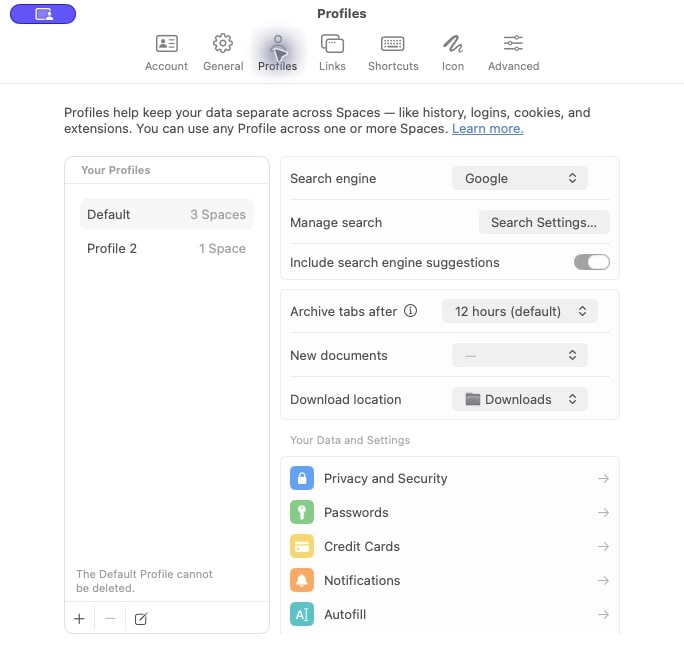
Open Settings > Profiles to see your Profiles and how many Spaces use each one. The + button creates a Profile, and the edit button lets you give it a useful name. Names such as Work and Personal are easier to recognize than names tied to one temporary task.
Profiles also have their own settings. For example, Archive tabs after applies to all Spaces using the selected Profile. You can keep temporary work references for seven days and let personal reading clear sooner by choosing different intervals for the two Profiles. The auto-archive guide explains what is archived and how to restore a page.
A Profile is an account and browsing-data boundary within your browser. It does not make a website anonymous, conceal your activity from the service you sign in to, or create a separate macOS user account.
Set up work and personal browsing
Here is a small setup you can grow later:
| Profile | Spaces | Shared Favorites |
|---|---|---|
| Work | Product, Research, Planning | Work mail, work calendar, team chat |
| Personal | Reading, Weekend plans | Personal mail, personal calendar |
The names are examples. Keep the separation as simple as your actual accounts allow.
- Open Settings > Profiles and create the Profiles you need. You can also keep using Default for one of your account environments.
- Create or choose the Spaces that belong to each environment.
- Open the menu beside a Space's name, choose Set Profile, and select the intended Profile. You can also reach this menu by right-clicking the Space name.
- In a Space using Work, sign in to the services you use for work. In a Space using Personal, sign in to your personal accounts.
- Check the account avatar or account menu on each important site before making this your everyday setup.
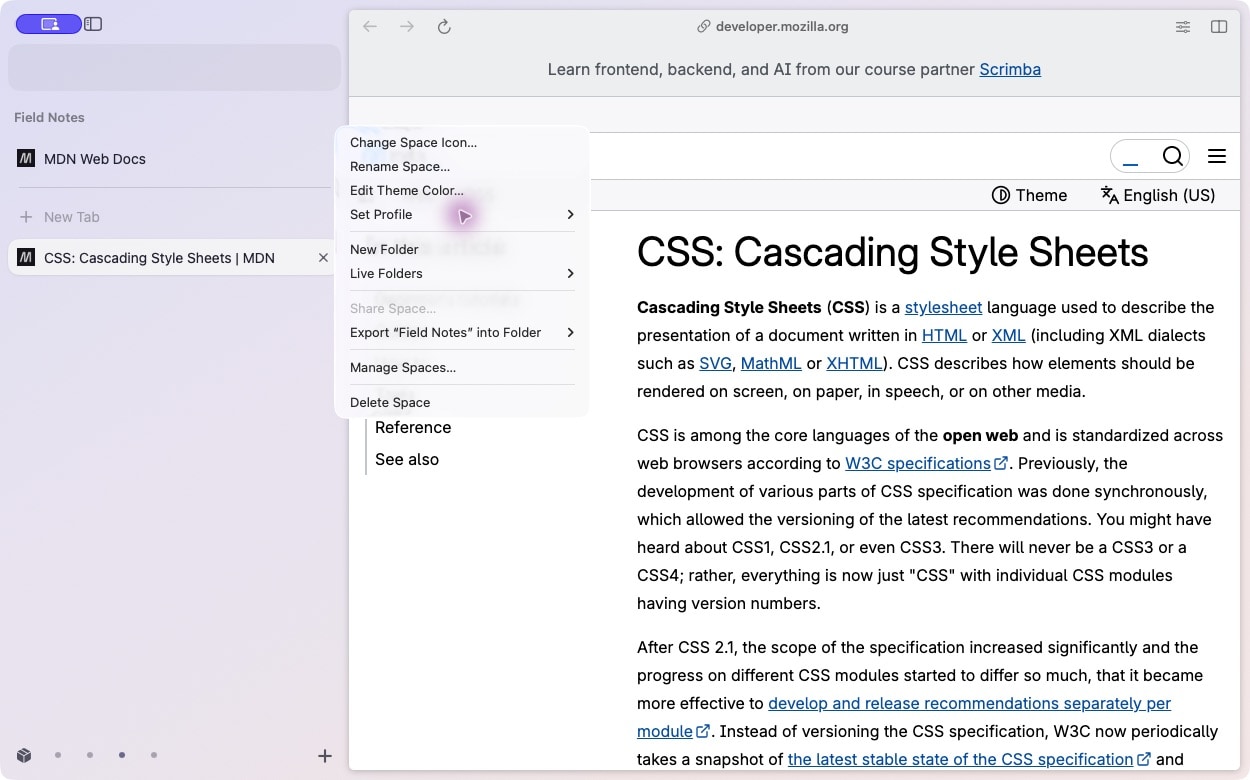
Moving a Space to another Profile changes which browsing environment its pages use. Do not expect the old Profile's cookies or sign-ins to move with it. Save any unfinished work before changing the Profile of a Space with active web applications.
You can check the relationship without adding another account: put two Spaces in the same Profile, open a service you already use in both, and check the signed-in account. Then compare a Space assigned to a different Profile. A fresh Profile will need its own sign-in.
After importing your Arc sidebar
Open Arc can import your Arc sidebar, including Spaces, folders, pinned tabs and Favorites. The imported sidebar goes into your current Open Arc Profile.
That import does not recreate Arc's Profile boundaries or transfer website cookies and signed-in sessions. If you previously used separate work and personal Profiles, take a moment to rebuild that part:
- Import the sidebar once and inspect the resulting Spaces.
- Create any additional Profiles you need in Open Arc.
- Assign each imported Space to the appropriate Profile.
- Check Favorites in each Profile and arrange the everyday sites you want there.
- Sign in to your websites again, checking that each account opens in the intended Space.
You do not need to import the sidebar again for each Profile. A repeated import adds another set of Spaces; assigning the imported Spaces is the useful next step.
A few questions that come up
Why do two Spaces show the same account?
Check Set Profile for both Spaces. If they use the same Profile, they share its cookies and sign-in environment. Choose different Profiles when you need separate accounts.
Why did my Favorites change when I switched Spaces?
Favorites belong to the Profile. Spaces in the same Profile share them; a Space in another Profile has that Profile's Favorites. Keep project-only pages pinned inside the relevant Space.
Do Profiles sync between Macs?
Profile data and account environments are local. Optional iCloud sidebar sync does not carry cookies, passwords, history, extensions or Profile separation to another Mac. A synced Space uses Default on a Mac where its Profile is unavailable. Set up and check the account environment on each Mac; see the sync guide for the scope of sidebar sync.
Do I need an Open Arc account?
No. You can use Open Arc without creating an Open Arc account. Website sign-ins stay with the services you choose to use, and optional sidebar sync uses your own private iCloud database.
Start with two contexts
You do not need a complicated system. Start with the work and personal accounts you already have, give each the right Profile, and add Spaces only when a project benefits from its own sidebar.
Open Arc is an independent, open-source browser for macOS. Bring over your Arc sidebar, check your Profile assignments, and keep the browsing routine that already works for you.
Download Open Arc · Installation and usage help · Profiles reference
Website: getopenarc.app · Source: Open Arc on GitHub