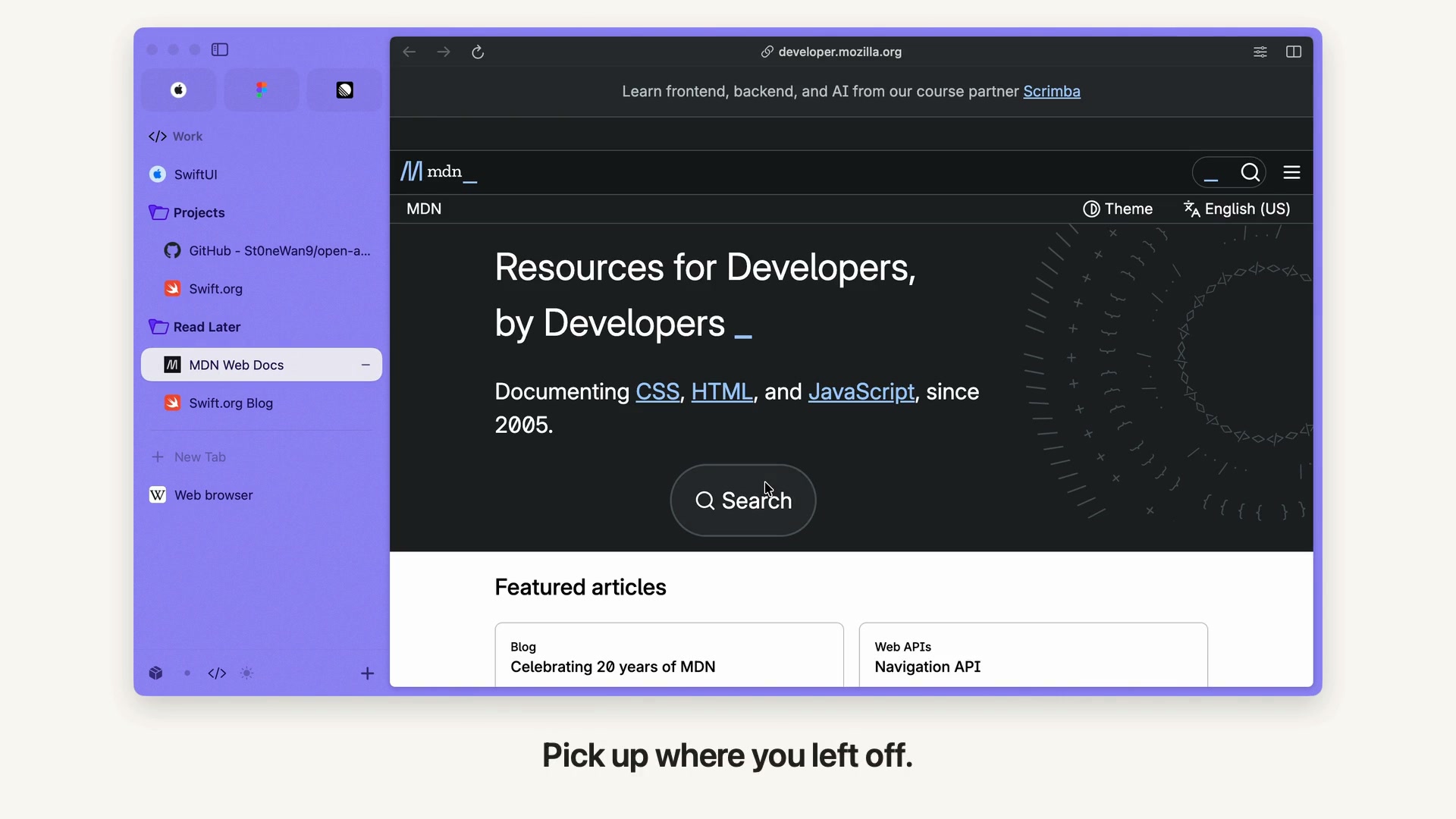
The hardest part of changing browsers is often the part you have already organized. A Space for work. A folder for a project. A few tabs pinned exactly where you expect them. Rebuilding that arrangement one link at a time is a good reason to put off trying something new.
Open Arc can import your Arc sidebar, so your first session does not have to begin with an empty workspace. It is an independent, open-source browser for macOS, with familiar Spaces, folders, Favorites, Today tabs and Split View.
This guide follows the sample workspace in our 44-second import demonstration . It shows what you can bring over, how to check it and which parts still need setting up. The import reads your source data; it does not change Arc or its data.
From a saved sidebar to a working workspace
Our demonstration starts with two example Spaces: Work and Personal. Work contains a pinned SwiftUI page, a Projects folder and a Read Later folder. Personal contains a Trips folder and its own tabs. Three Favorites sit above the Spaces.
The useful result is not simply getting the URLs back. The folders still belong to their Spaces, and the tabs remain organized around the things you were doing.
| In the sample source | After import into Open Arc |
|---|---|
| Work Space with its theme | A Work Space you can switch to, with the imported theme color |
| Projects and Read Later folders | The same folders inside Work, with their supported links |
| Personal Space and its Trips folder | A separate Personal Space with Trips inside it |
| Pinned pages and temporary Today tabs | Supported tabs rebuilt in their corresponding Spaces |
| Apple, Figma and Linear Favorites | Favorites added to the current Open Arc Profile |
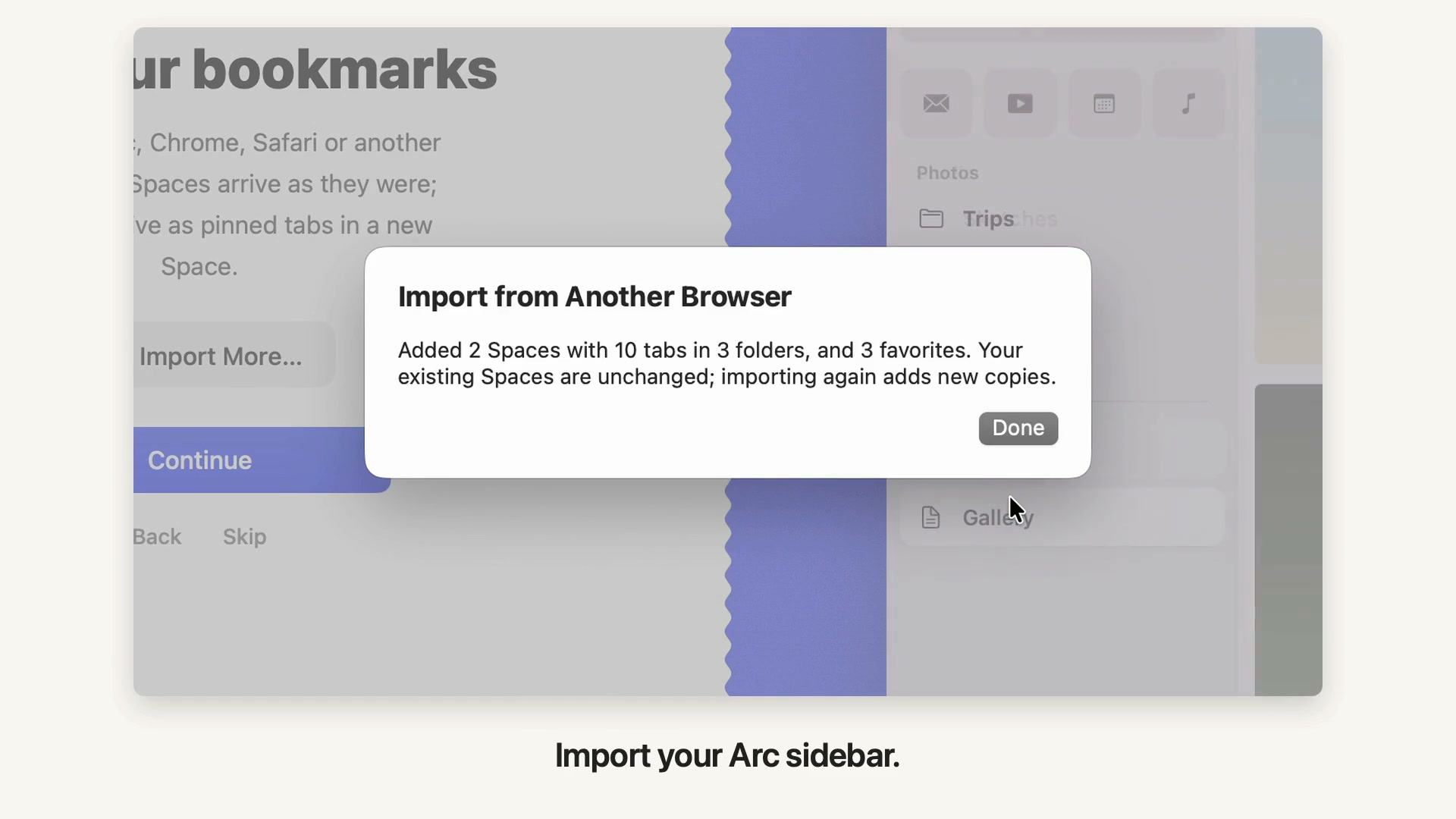
In this recording, the import result reports 2 Spaces, 10 tabs in 3 folders, and 3 Favorites. Those are the counts for this example, not a limit on the importer or a prediction for your own workspace.
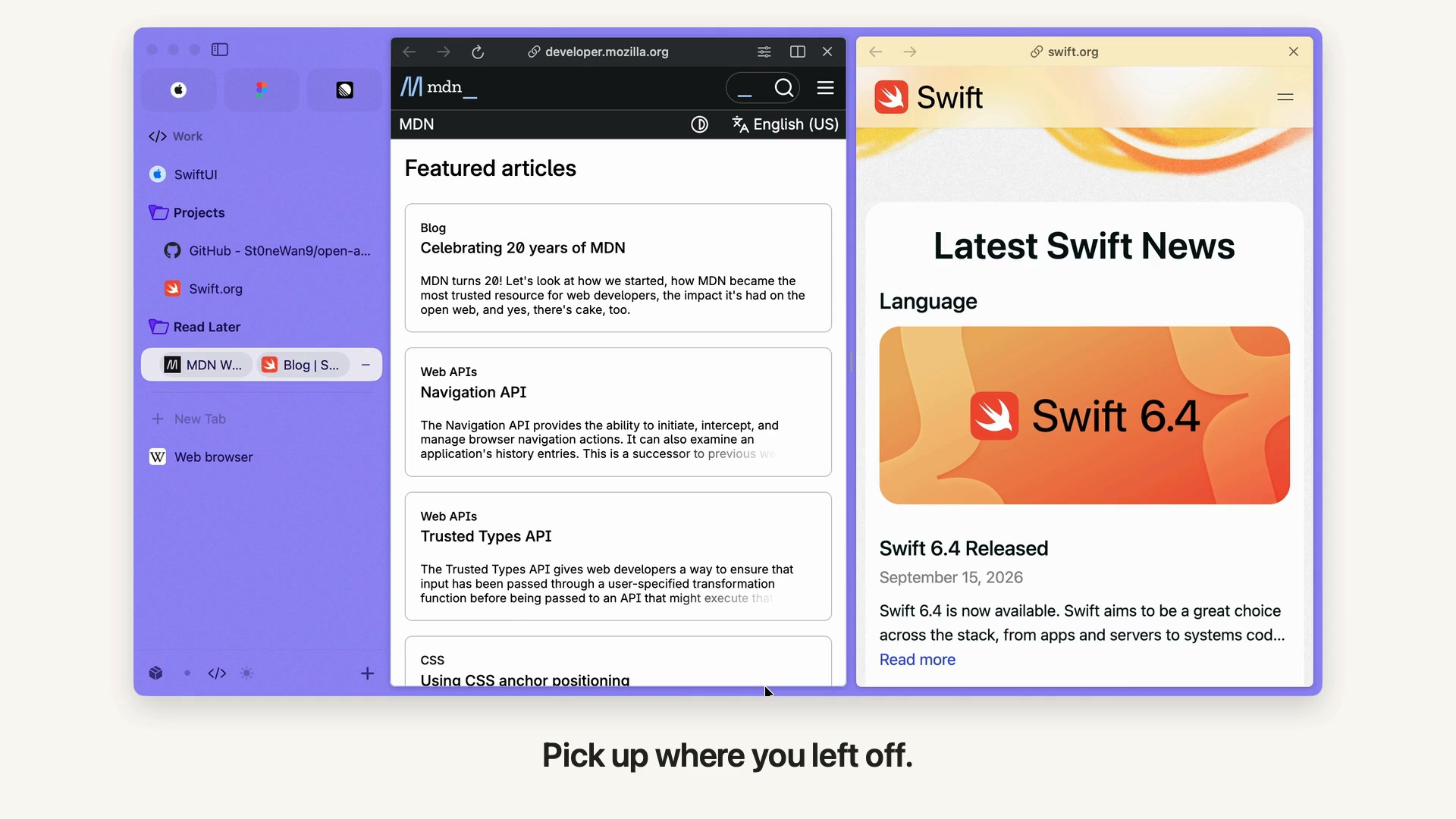
You can then switch Spaces, expand folders and open the pages you recognize. The demo also shows opening pages in Split View after import. That sequence demonstrates using the imported workspace; it is not a demonstration of importing an existing split group.
Try it without moving everything at once
You need an Apple silicon Mac running macOS 14 or later. You can try Open Arc alongside Arc and keep your current default browser while checking the result.
- Download Open Arc, open the DMG and drag the app into Applications.
- Open a normal browsing window and choose Open Arc > Import from Another Browser…. The welcome flow also provides an import entry point.
- Select Arc, then Sidebar (Spaces, tabs and favorites).
- If History or Passwords appears, choose whether you want those too. They are separate options available when supported source data is found. Password import may ask for access to the relevant key in macOS Keychain.
- Click Import, then read the result, including any skipped items.
- Switch between the imported Spaces and open the folders and tabs you use most often.
The sidebar is added to your current Open Arc Profile. Existing Spaces are left in place. A second sidebar import adds another set of Spaces; it does not merge with the first import. Favorites already present with the same URL are not added again.
If you only need to retry history or password import, deselect Sidebar first. That avoids adding a second copy of the workspace.
What comes with you
The importer supports Space names, theme colors and recognized icons; pinned tabs and nested folders; Favorites; Today tabs; and supported split groups. History and saved passwords have their own import options when readable data is detected.
There are a few details worth checking. An unrecognized Space icon may not carry over. Unsupported items or link types can be skipped. Custom tab names may become the website's page title after loading. A restored tab opens its saved URL, rather than restoring an unsaved form or the page's running state.
The import guide has the full scope and troubleshooting steps. If Arc is not detected automatically, Choose File… can read your own sidebar file. A sidebar file contains the workspace structure; it does not include your history or passwords.
What needs a fresh setup
A sidebar import gets your organization across. It is not a copy of every part of the old browser.
- Website logins: cookies and signed-in sessions do not transfer. Sign in to your important sites again.
- Extensions: reinstall the ones you use from the Chrome Web Store and check that they work for your tasks.
- Profiles: Spaces are imported into the current Open Arc Profile. Your old Profile boundaries and their separate signed-in environments are not recreated automatically.
- Preferences and shortcuts: check your preferred settings. This is not a complete transfer of all Arc configuration.
For a work-and-personal setup, decide which Open Arc Profiles you need before relying on it day to day. Spaces organize pages; Profiles separate browsing data and logins. Several Spaces can share one Profile.
A five-minute check after import
Start with a familiar task rather than opening every tab at once.
- Find one project. Open its Space, expand a folder and check a couple of important links.
- Check your everyday sites. Sign in and confirm the interactions you depend on work.
- Check extensions and account separation. Make sure work and personal sites use the intended Profile.
- Try a two-page task. Put a reference beside a document or compare two pages in Split View.
- Choose your archive interval. In Settings > Profiles > Archive tabs after, choose 12 hours, 24 hours, 7 days or 30 days for idle, unpinned Today tabs. Pin anything you want to keep; archived tabs can be reopened.
Keep Arc and its local data while you check your setup. Open Arc is still a young project, and importing a workspace does not guarantee compatibility with every site or Arc feature. Read the current limitations , especially if your routine depends on a feature or streaming service you cannot do without.
Your workspace stays yours
You do not need an Open Arc account to use the browser. Your browsing data lives on your Mac. Optional sidebar sync uses your own private iCloud database and is off by default; it does not sync website logins, passwords, history, extensions or Profile separation. The sync guide explains what it includes.
That is separate from basic usage measurement, which you can turn off in Settings > General > Share usage data. See the privacy policy for the details.
If you want to try Open Arc, start with the workspace you already know. Import it, check a familiar project and see how it fits your day. You do not have to rebuild your sidebar to find out.
Download and explore Open Arc · Read the migration guide · View the source on GitHub .