You open a reference to answer one question. Then a second page, a comparison, and something you might read later. By the end of the day, the sidebar contains both your work and the trail you took to get there.
Open Arc can move idle temporary tabs into an archive automatically. The sidebar becomes easier to scan, and you can reopen an archived page when it becomes useful again.
If you liked this part of Arc, the routine will feel familiar: keep the pages you depend on, let temporary tabs age out, and search the archive when you need to go back. Here is how to make that routine work in Open Arc.
Give permanent and temporary pages different homes
The divider in a Space separates two kinds of tabs.
- Pinned tabs and folders, above the divider: the pages you deliberately keep around. They are not automatically archived.
- Today tabs, below the divider: temporary pages opened during your browsing. These are the tabs covered by automatic archiving.
- Favorites: everyday sites available within a Profile. These are also excluded from automatic archiving.
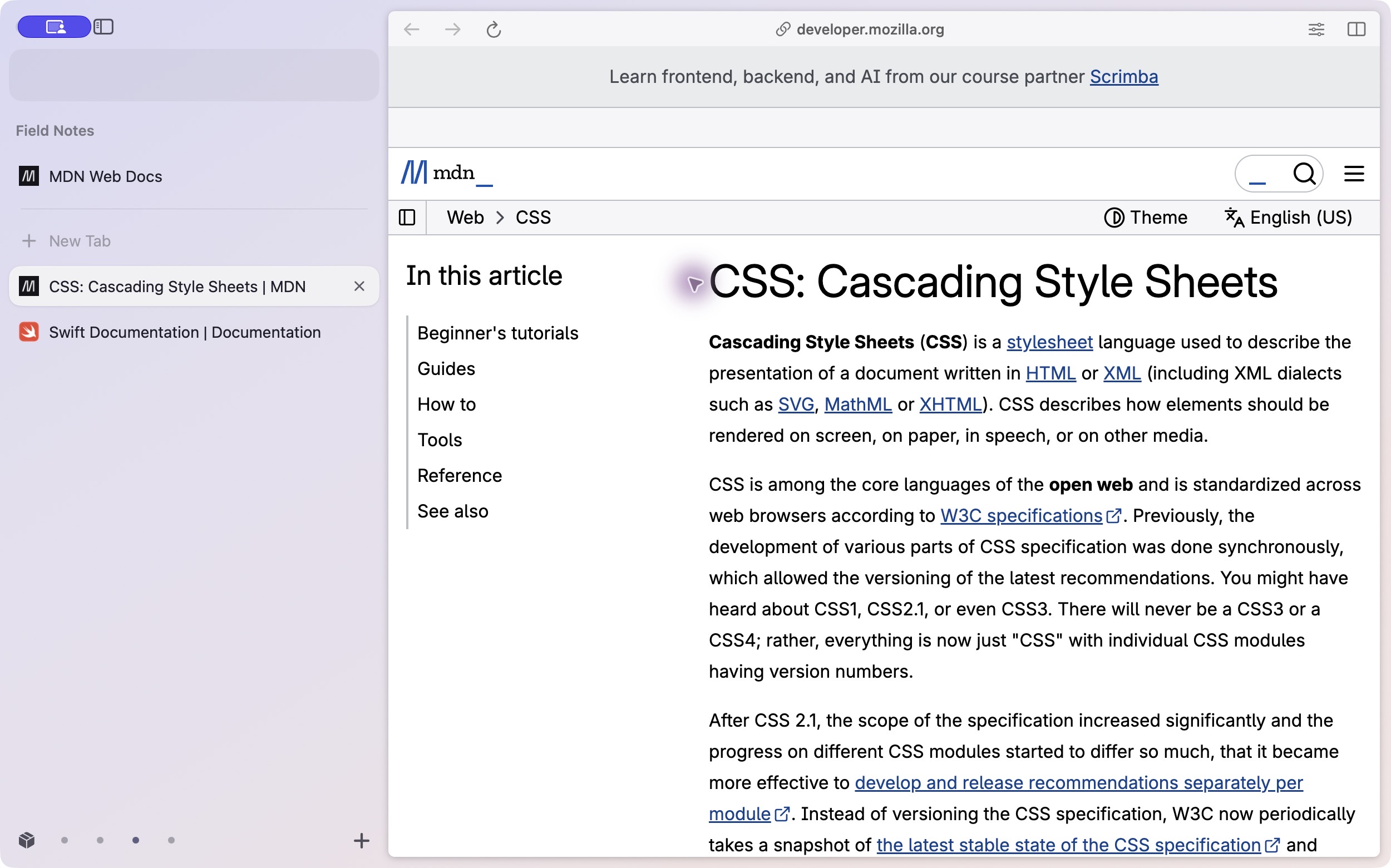
In the example above, the MDN homepage is pinned. The CSS reference and Swift documentation are temporary tabs. The homepage stays in place while the temporary pages can move out of the way after a period of inactivity.
For something you need next week, pin it or put it in a pinned folder. For a page you opened to answer a question today, leaving it in Today is often enough. You do not have to turn every useful link into a permanent part of the sidebar.
Choose how long temporary tabs stay
Open Settings > Profiles, select the Profile used by your Space, and find Archive tabs after.
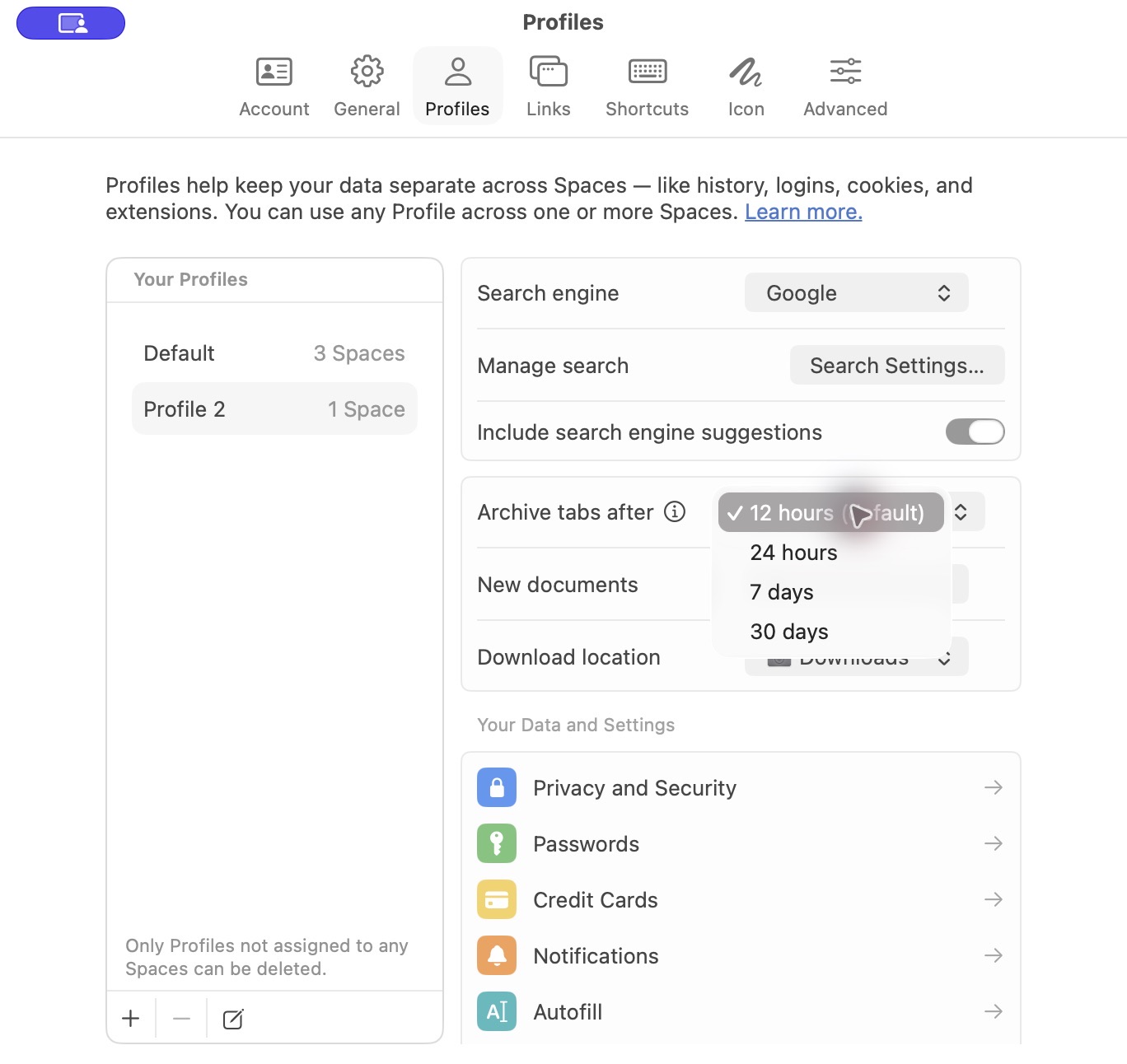
| Interval | A starting point for |
|---|---|
| 12 hours, the default | Short tasks and a frequently refreshed sidebar |
| 24 hours | Keeping temporary pages around across a typical day |
| 7 days | Research you return to during the week |
| 30 days | A more gradual transition if you are used to leaving many tabs open |
These are suggestions, not separate modes. Choose the interval that fits how you return to your work. If work and personal Spaces need different intervals, assign them to different Profiles; changing the setting affects every Space using that Profile.
The interval measures inactivity, not simply time since a tab was created. Pages currently shown in a window, their visible Split View partners, and pages playing sound are kept out of an automatic archive pass. Open Arc checks periodically, so this is not a countdown that closes a page at an exact second.
A short interval works best when the pages you need to keep are already pinned. A longer interval gives you more time to revisit temporary reading without changing that distinction.
Bring back the page you need
An archived tab leaves Today, but its saved title and URL give you a way back. There are several useful routes.
You just closed it
Use Restore Last Closed Tab, or ⇧⌘T, to reopen the most recently archived tab. Repeat to work back through earlier entries.
You remember part of the title or address
Open the command bar with ⌘T and search for the page. Archived pages can appear in the results alongside other matches.
You want to browse the archive
Choose Archive > View Archive…, or open the Library with ⇧⌘L and select Archived Tabs. Search for a title or address, then click the matching entry. You can also right-click it and choose Restore Tab.
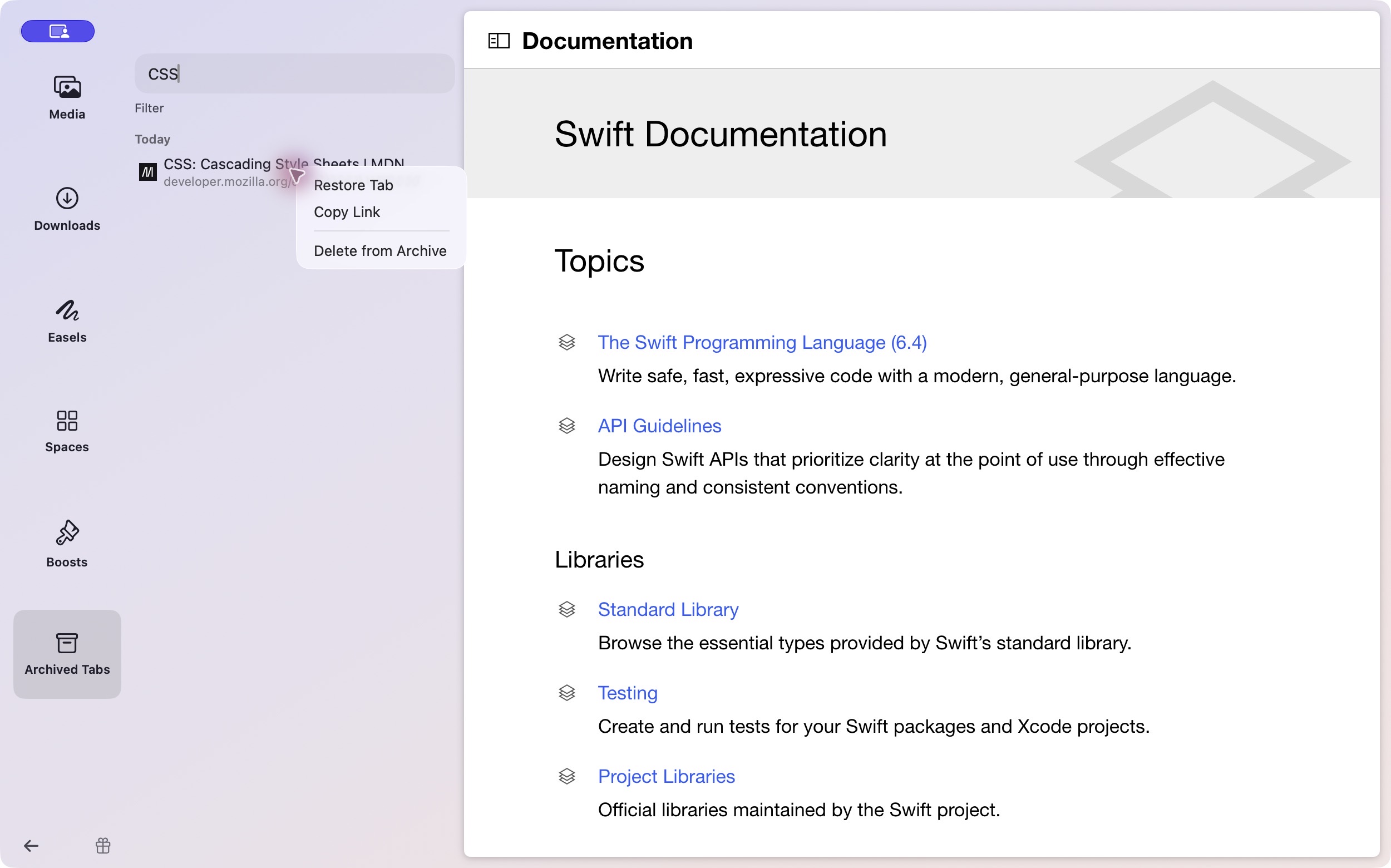
The restored page returns to the top of its Space's Today section. The archive also offers filters for automatic and manual closures, making it easier to narrow down a longer list.
Restoring opens the saved URL again. It is not a snapshot of an unsaved form, an editor's in-memory changes, or the exact state of a web application. Save important work in the site itself before closing or leaving it.
Try the whole routine in a minute
You do not need to wait 12 hours to learn where archived pages go.
- Open an ordinary public page as a Today tab. Keep anything important pinned above the divider.
- Use the tab's close control, or ⌘W, to archive that temporary tab manually.
- Open Archive > View Archive… and search for its title.
- Click the result, or choose Restore Tab from its context menu.
- Check that the page has returned to Today, then choose an archive interval in Settings.
This demonstrates the archive-and-restore path. Automatic archiving uses the inactivity interval; manually closing a temporary tab does not change that interval.
If you want to clear the current Space's temporary tabs together, use Clear at the divider or ⇧⌘K. They go into the archive. Clear Archive is a different command: it permanently removes the archive entries, so it is not the command to use for a routine sidebar tidy-up.
Start with a sidebar you already know
Open Arc is an independent, open-source browser for macOS. You can bring your Arc sidebar into Open Arc, then use the same distinction between pinned pages and temporary tabs without rebuilding your organization from scratch.
Try one Space first. Pin the pages you always return to, choose a comfortable interval, and practice restoring a temporary tab. That is enough to make the next busy browsing session easier to leave behind.
Download Open Arc · Installation and usage help · Archive reference
Website: getopenarc.app · Source: Open Arc on GitHub